---
title: "Search Text in PDF Documents"
slug: "search-text-in-pdf-documents"
description: "Learn how to use the Chrome browser's native search function to search for words or phrases within PDF documents."
updated: 2026-05-11T16:35:03Z
published: 2026-05-11T16:35:03Z
canonical: "www.civicplus.help/search-text-in-pdf-documents"
---
> ## Documentation Index
> Fetch the complete documentation index at: https://www.civicplus.help/llms.txt
> Use this file to discover all available pages before exploring further.
# Search Text in PDF Documents
This article will show you how to use the Chrome browser's native search function to search for words or phrases within PDF documents.
## Instructions
1. [Navigate to the desired PDF document](/codification/docs/basic-site-navigation#find-a-code-or-set-of-documents):
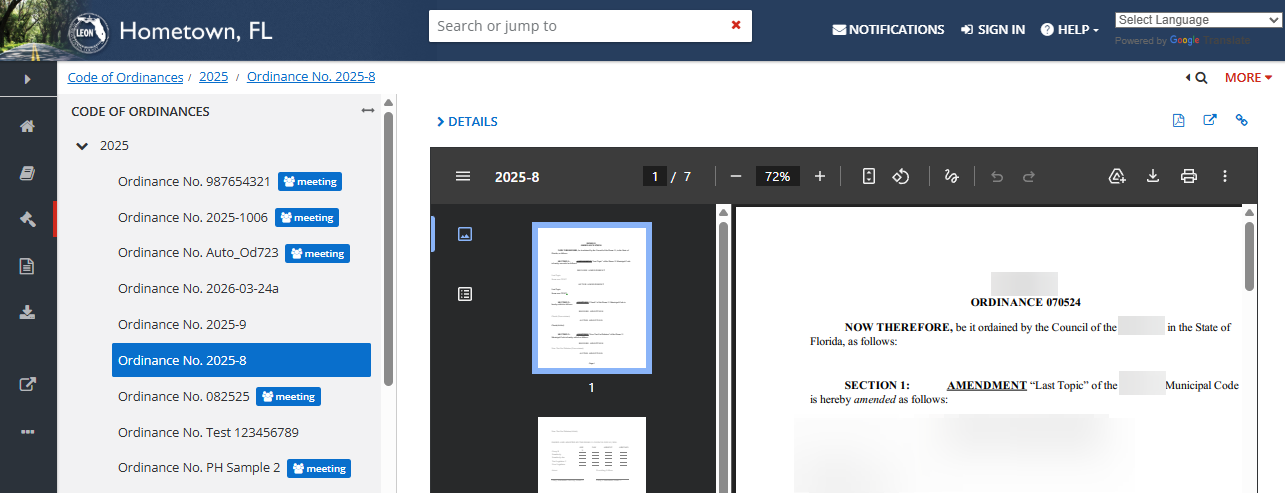
2. Press CTRL + F on your keyboard
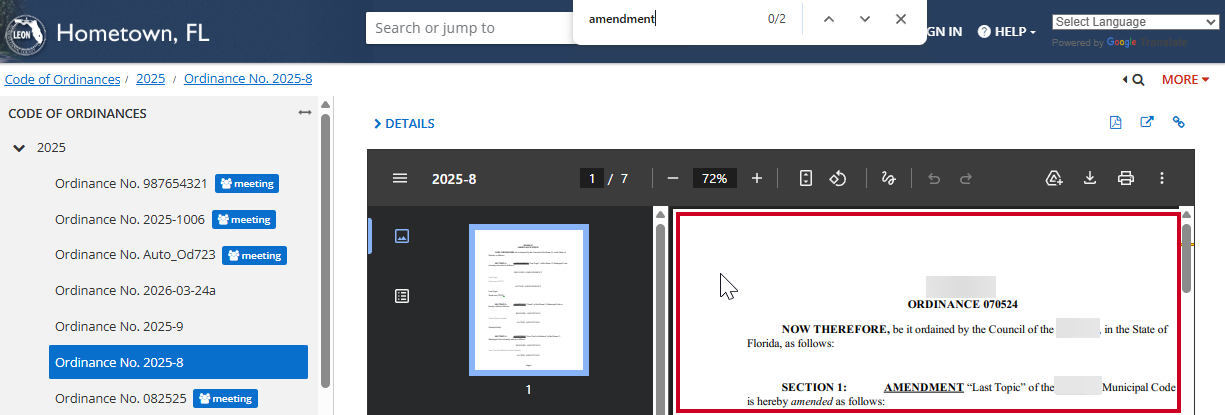
3. Type the desired **search terms** into the floating browser search box that appears:

4. Left-click on any portion of the **document** within the PDF viewer:
> [!WARNING]
> Note:
>
> If you do not click on the PDF itself, the search function will cycle back and forth between results on the browser window and results within the PDF viewer.
5. Use the **up** and **down arrows** on the floating browser search box to navigate through the document to the desired search result:

> [!WARNING]
> Note:
>
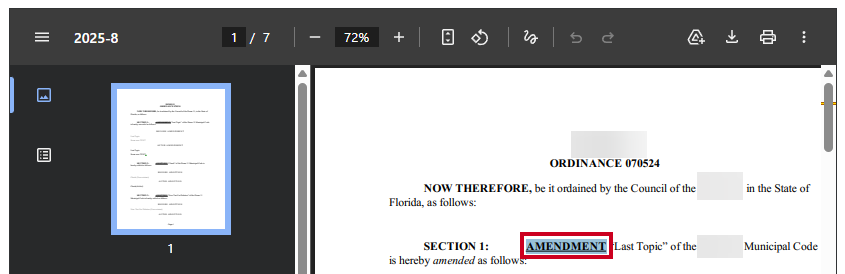
> Only the currently selected search result will appear highlighted. Other matches will not be highlighted until selected:
>
> 
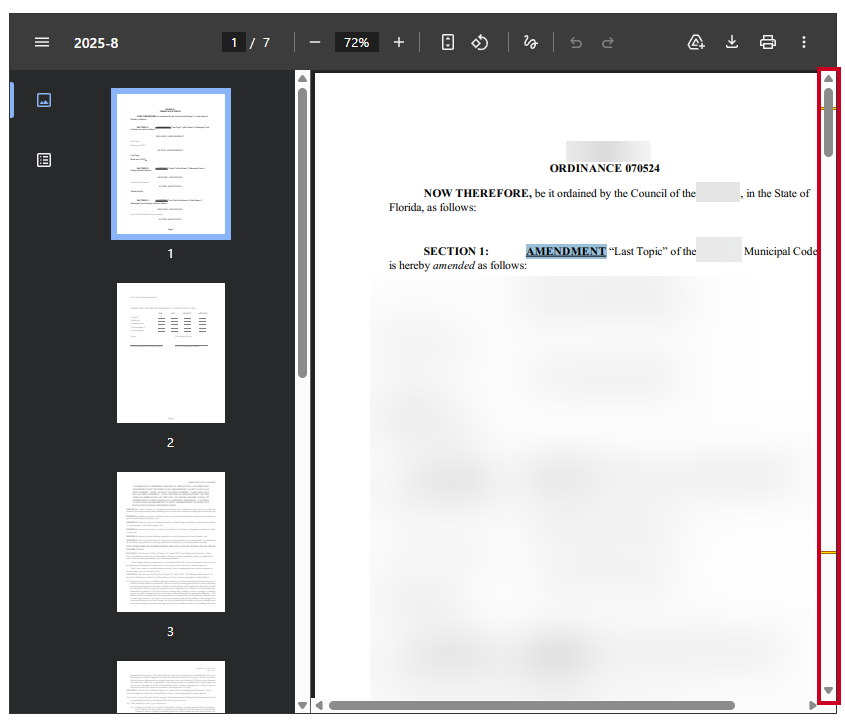
6. You can also use the **orange and yellow bands** along the scroll bar as a guide to locations in the document where search results can be found:
Portable Document Format.