---
title: "Add an Email Hyperlink in the Editor Widget"
slug: "add-an-email-hyperlink-in-the-editor-widget"
description: "Learn how to create email hyperlinks in the Editor Widget and explore formatting options for enhanced email communication."
updated: 2026-06-03T14:05:45Z
published: 2026-06-03T14:05:45Z
canonical: "www.civicplus.help/add-an-email-hyperlink-in-the-editor-widget"
---
> ## Documentation Index
> Fetch the complete documentation index at: https://www.civicplus.help/llms.txt
> Use this file to discover all available pages before exploring further.
# Add an Email Hyperlink in the Editor Widget
This article will show you how to add an email hyperlink to a page using the Editor Widget, as well as some formatting tips for creating an email hyperlink using HTML in the Code View.
> [!NOTE]
> Important Note
>
> Users will need to have a default email application set up in order for the hyperlink to open an email application on their device.
> [!TIP]
> Who can use this feature?
>
> System Administrators | Owners | Publishers | Authors
## Create an Email Hyperlink Using the Editor Widget Toolbar
[Embedded content](https://www.iorad.com/player/1899117/Web-Central--Add-an-Email-Hyperlink-in-the-Editor-Widget-Tutorial)
1. [Sign in to your website solution](/municipal-websites-central/docs/sign-in-to-your-site)
2. Ensure that the **Live Edit state** is toggled to **ON,** and navigate to your page
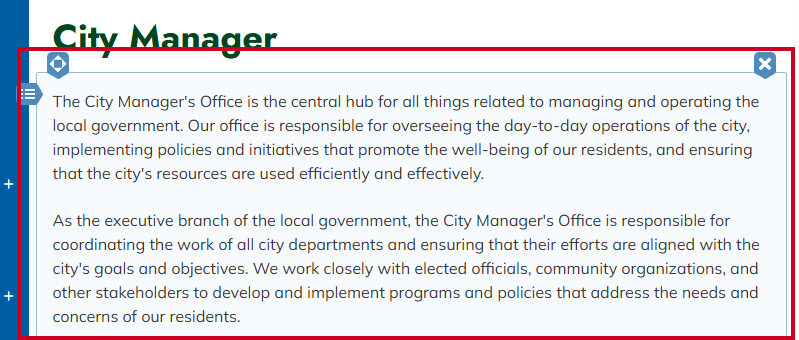
3. On your page, click inside an existing Editor widget (or [add an Editor Widget](/municipal-websites-central/docs/add-the-editor-widget-to-a-page))
4. Add and/or select the text that you intend to use for your link, and click the **Insert Link** button in the toolbar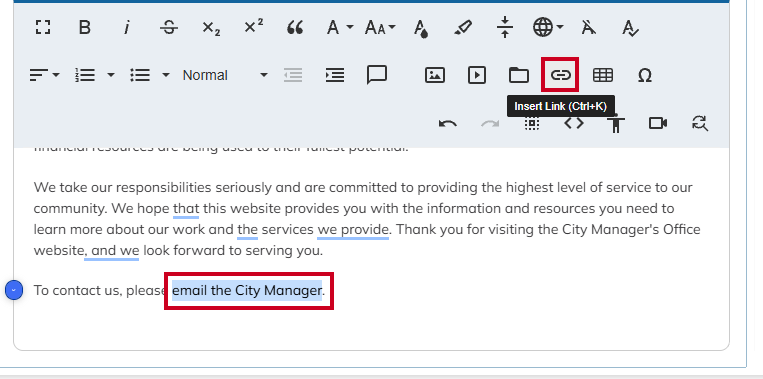
5. Add your **email address** in the **URL** field and click **Insert** 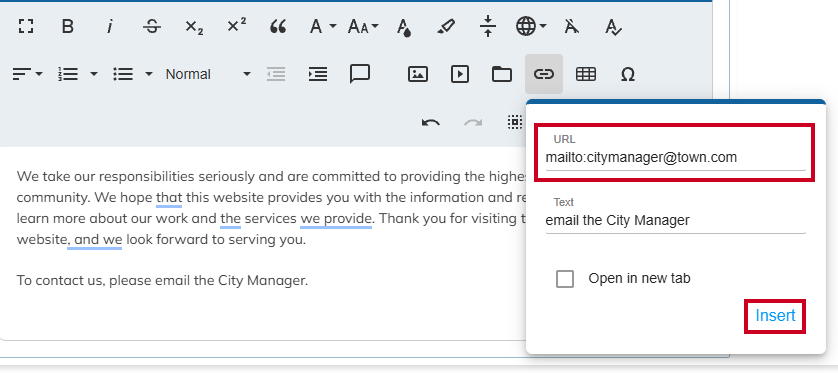
> [!WARNING]
> **Note**:
>
> Make sure to include “mailto:” in front of the email address. You may add **multiple** email addresses to this field by adding a **semicolon** between each email address. View the [formatting options](/municipal-websites-central/docs/add-an-email-hyperlink-in-the-editor-widget#formatting-options-for-manually-created-email-hyperlinks) for more information.
6. To exit the Editor widget, click the **Done Editing** button
> [!WARNING]
> **Note**:
>
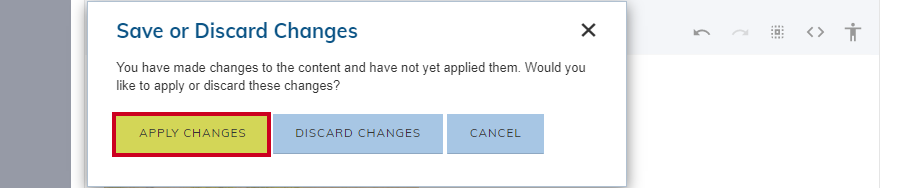
> If you click out of the Editor without clicking the Done Editing button, a **Save or Discard Changes** pop-up will appear. Select **Apply Changes** to save:
>
> 
7. Click the **Save** button
---
## Formatting Options for Manually Created Email Hyperlinks
> [!WARNING]
> **Note**:
>
> Be aware that these methods will not always work, as email clients handle emails differently. We recommend creating an email group or building a form in the form center that will send emails to multiple users. Then you can build a link to the form instead of to an email address.
- **To send to one email address**:
- mailto:first@mail.com
- **To send to multiple email addresses**, use one of the following:
-
-
- **CC (Carbon Copy) or BCC (Blind Carbon Copy)**:
-
- **Set the subject line**:
-
- **Set the body**:
-
- **Combining these options**: If you want multiple elements, start with a **?** (question mark) after your email address, then place an **&** (ampersand) between each of the sections
- **Example of Combining**: [](mailto:first@mail.com<strong>?</strong>cc=second@mail.com<strong>&</strong>subject=Hello Again&body=Body goes here)
> [!WARNING]
> **Note:**
>
> Some mail clients will not support these combinations. So, you may have to choose one option after your email, such as
Hypertext Markup Language. The language used to define the content of the site in a structurally meaningful manner.
Uniform Resource Locator