---
title: "Add and Manage Custom HTML on a Page"
slug: "add-html-on-a-page"
description: "Learn how to add and modify a Custom HTML widget to embed videos, iframes, APIs, and other web services on your site."
updated: 2026-09-01T13:21:23Z
published: 2026-09-01T13:21:23Z
canonical: "www.civicplus.help/add-html-on-a-page"
---
> ## Documentation Index
> Fetch the complete documentation index at: https://www.civicplus.help/llms.txt
> Use this file to discover all available pages before exploring further.
# Add and Manage Custom HTML on a Page
The Custom HTML widget has a wide range of uses. Municipal Websites Central is a powerful platform that gives you the ability to consume its API or integrate your own web services. This functionality allows our web solution to be used for many different needs. A few examples that our customers have integrated with our website are Property Tax Calculators, Inmate Lookup Tools, Parcel Searches, and many custom web service integrations. The most popular are:
- [YouTube Video Embeds](/municipal-websites-central/docs/retrieve-the-x-twitter-feed-embed-code#embed-a-youtube-video)
- Vimeo Video Embeds
- [Other Video Embeds](/municipal-websites-central/docs/embed-videos-on-a-page)
- Iframes
- Custom Script
- Video Tour books
Many applications offer an API, which allows other applications to interact with their system. A Municipal Websites Central site can also interact with almost any API available using a Custom HTML Widget. API can also receive data from Municipal Websites Central. To do this, you will **post** a request to an endpoint that contains data in a format the API is expecting.
> [!NOTE]
> Important Notes:
>
> - If you need assistance or have questions, please [contact CivicPlus Support](/municipal-websites-central/docs/contact-civicplus-support). However, if the Custom HTML script has been provided by a party other than CivicPlus, Support will only be able to assess the interaction of the code with the CMS. Support is unable to troubleshoot third-party code beyond basic analysis.
> - In the event that Custom HTML code conflicts with a page, you may need to [Disable Custom HTML Rendering](/municipal-websites-central/docs/disable-custom-html-rendering) to access editing options.
> - Some links or content may not operate in an iframe based on the browser or security policies. Please view our article [Embed Videos on a Page](/municipal-websites-central/docs/embed-videos-on-a-page) for further troubleshooting options.
> - The Custom HTML Widget will only accept a URL that has a valid SSL Certificate. (**HTTPS://**)
## Disclaimer
Not all code is compatible with the CivicPlus Content Management System. Conflicts between an added script and our base system code can cause pages to break. This can include widgets not behaving as expected, editing functions becoming disabled, or a complete lack of access to the page. Due to these potential errors, it is recommended that Custom HTML be [tested on copied pages](/municipal-websites-central/docs/copy-a-page) prior to being added to a live page or the full site. Future releases may impact compatibility, which may cause previously working code to fail.
---
## Add Custom HTML on a Page
> [!TIP]
> Who can use this feature?
>
> System Administrator | Owner | Publisher
[width:100%;height:450px;](https://www.iorad.com/player/2761394/Central--Add-the-Custom-HTML-Widget-to-Your-Page-Tutorial?iframeHash=trysteps-1&lang=en&src=iframe)
1. [Sign in to your site](/municipal-websites-central/docs/sign-in-to-your-site)
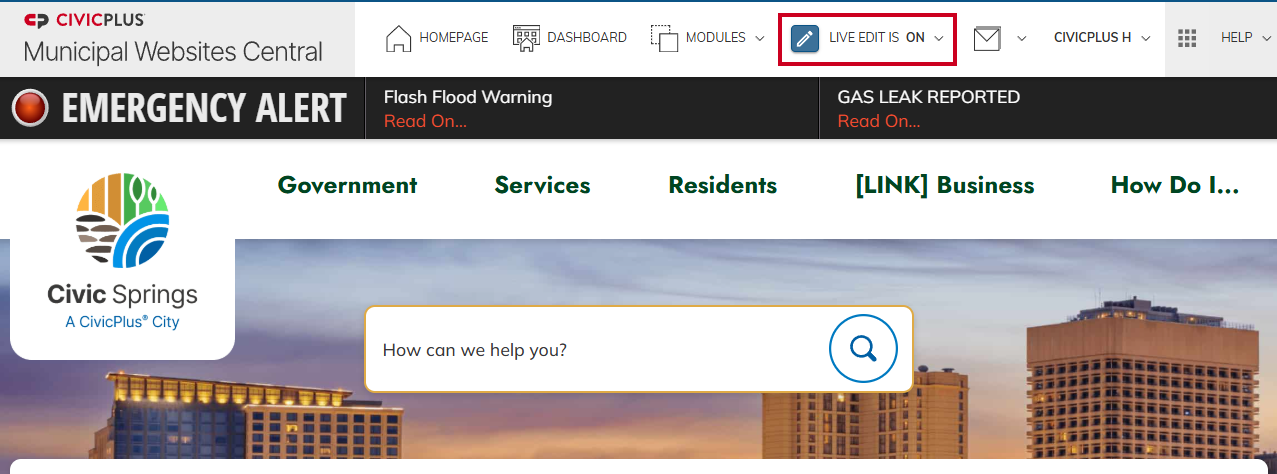
2. Navigate to your desired page and ensure **Live Edit Is On**:
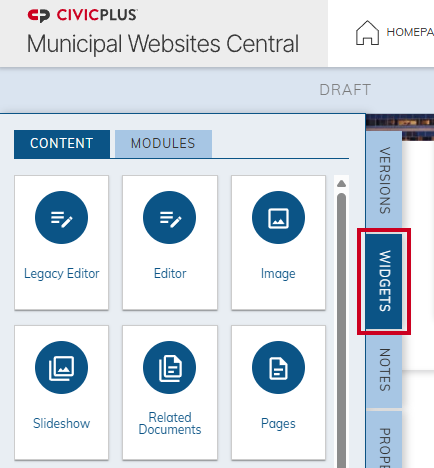
3. Select **Widgets** from the tab menu:
4. Drag and drop the **Custom HTML** widget onto the page where you would like your item to show:

> [!WARNING]
> Note:
>
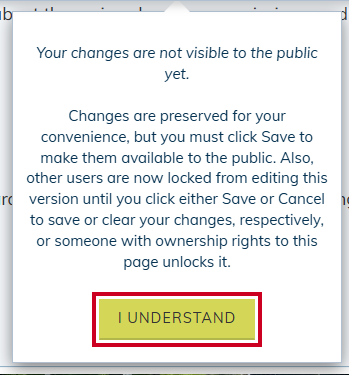
> After you place the Custom HTML widget on the page, a confirmation window will appear. It confirms that your changes are not yet visible to the public and that the page is locked for other users until you click Save or Cancel. Click **I Understand** to close the window and continue:
>
> 
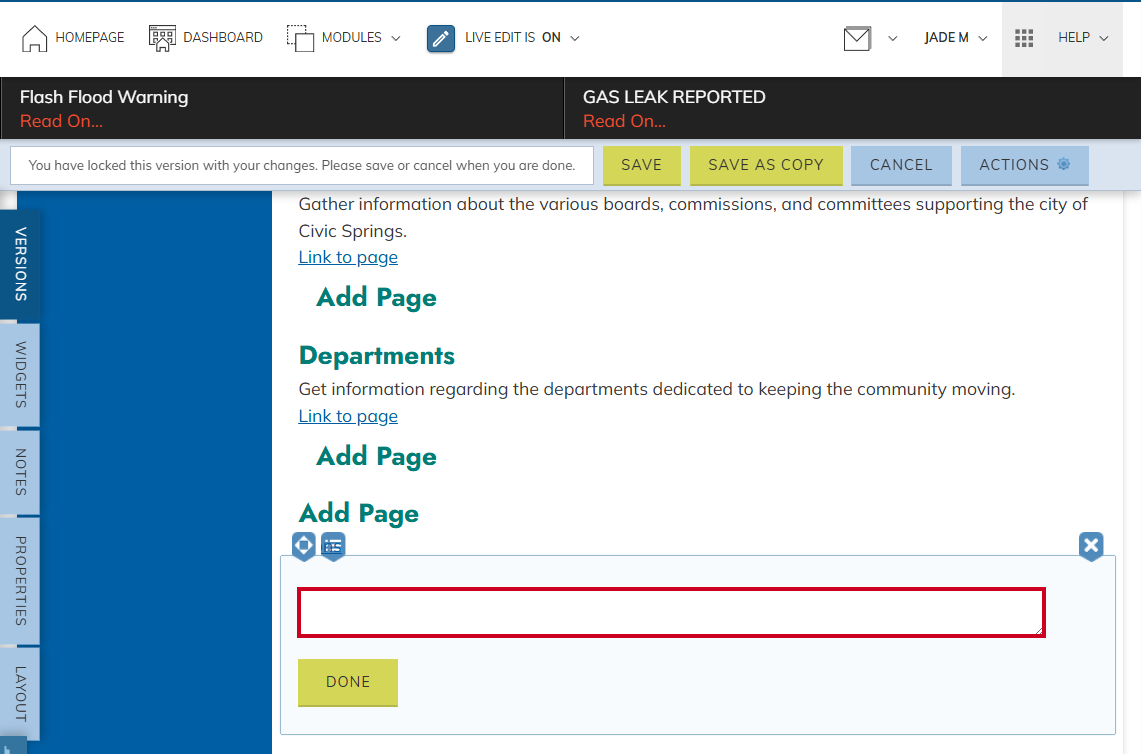
5. Paste your **custom code** into the widget:
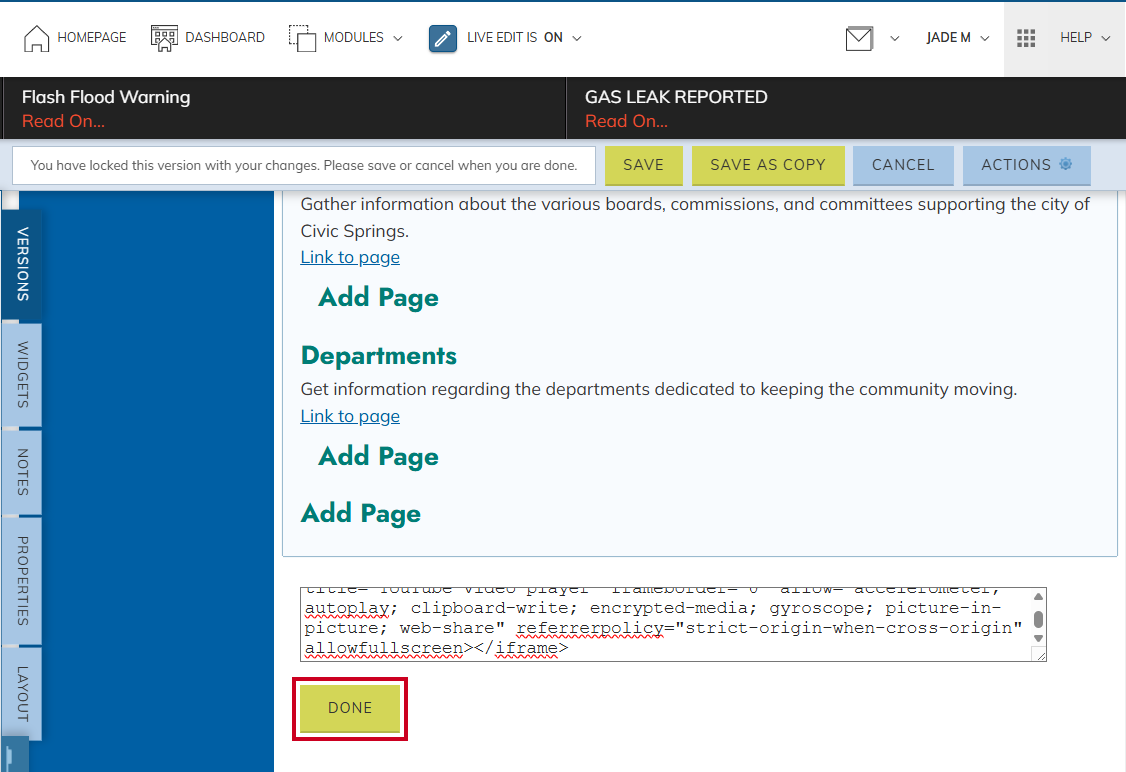
6. Click the **Done** button:
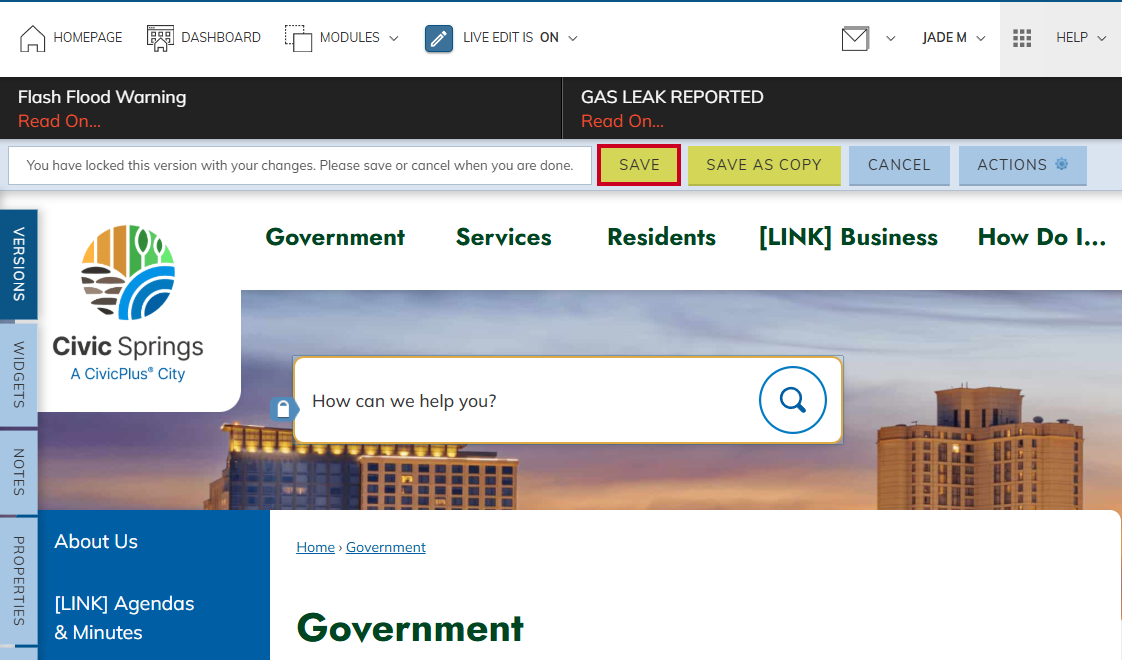
7. Click the **Save** button:
> [!WARNING]
> **Note**:
>
> You may not see the result of your code in Live Edit. You may need to turn off Live Edit to see what a user will see.
---
## Modify Custom HTML on a Page
[width:100%;height:450px;](https://www.iorad.com/player/2761407/Central--Modify-the-Custom-HTML-Widget-Tutorial?iframeHash=trysteps-1&lang=en&src=iframe)
1. [Sign in to your site](/municipal-websites-central/docs/sign-in-to-your-site).
2. Navigate to your desired page and ensure **Live Edit Is On**:

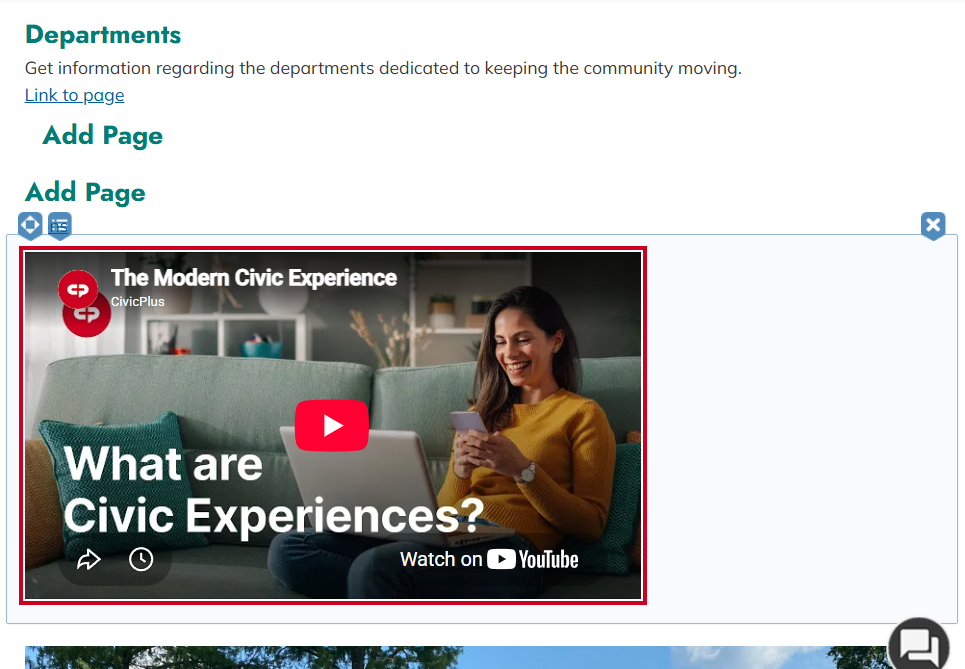
3. Locate and click on the Custom HTML Widget:
> [!WARNING]
> Note:
>
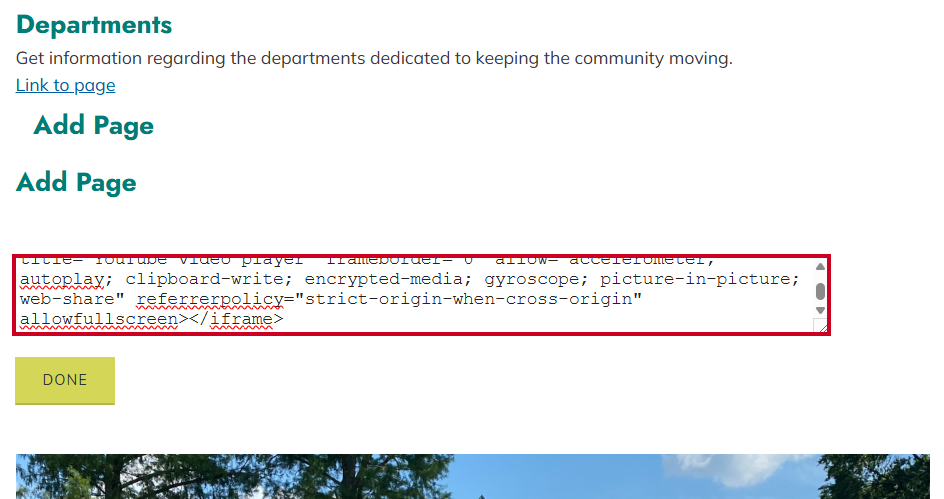
> Once you click the widget, the Custom HTML code field will appear:
>
> 
4. **Delete** the code currently in the widget.
5. **Paste** the new embed code:
6. Click the **Done** button:
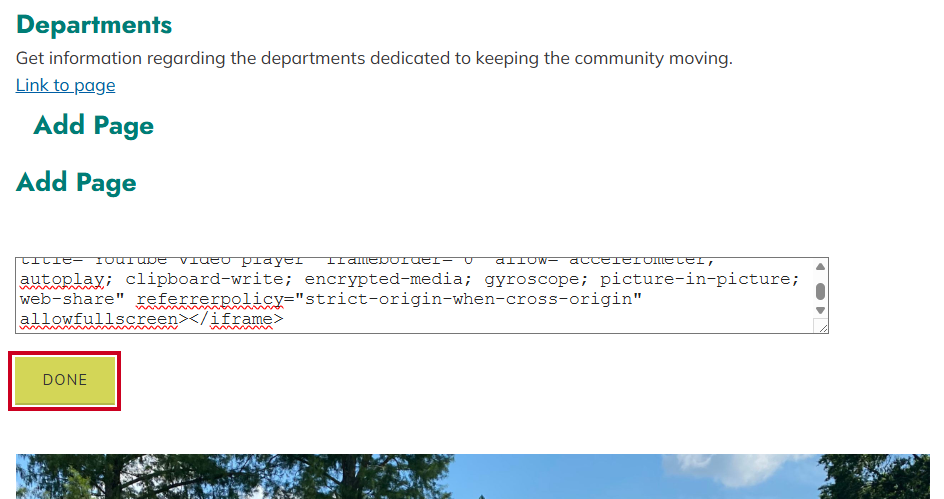
7. Select a **Save** option:
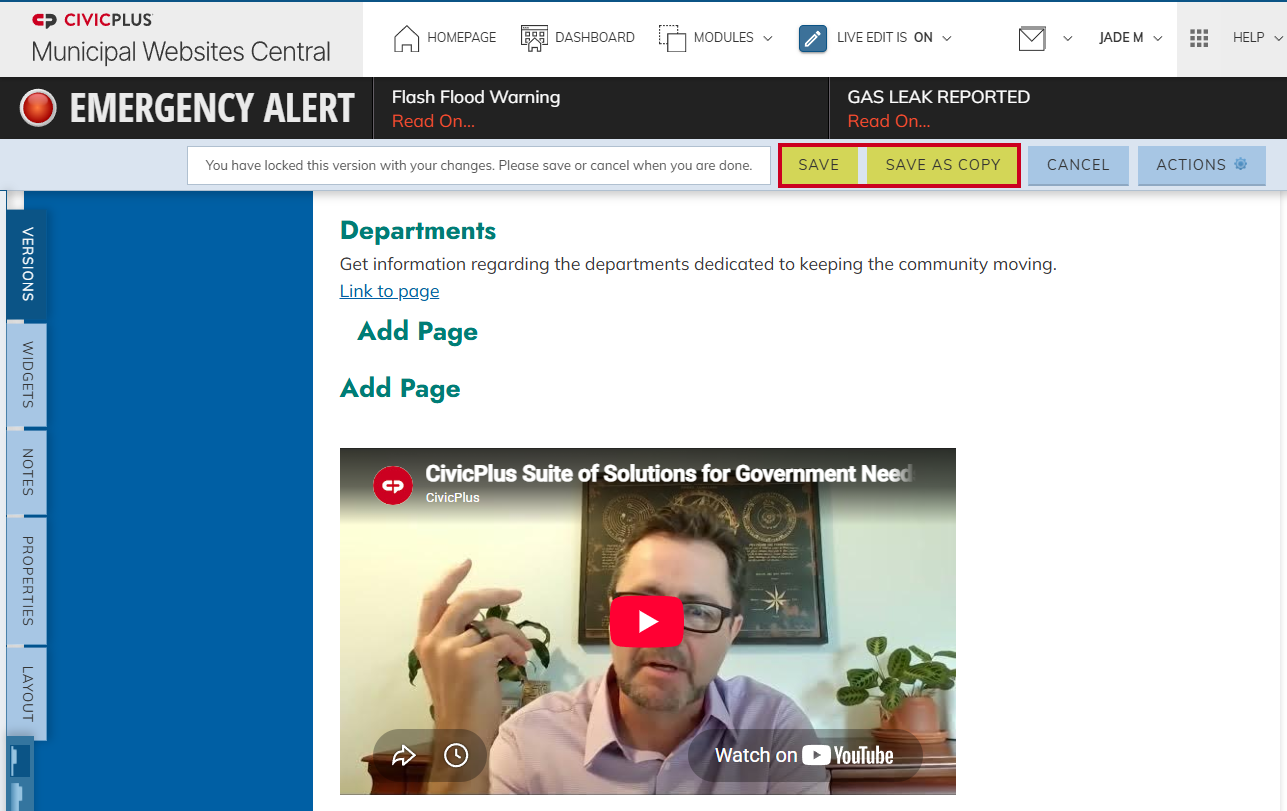
- **Save**: Saves your changes to the current version of the page and updates it directly
- **Save as Copy**: Saves your changes as a new version of the page, leaving the original version unchanged
Hypertext Markup Language. The language used to define the content of the site in a structurally meaningful manner.
Application Programming Interface. A set of rules that allows programmers to develop software for a particular operating system without having to be completely familiar with that operating system.
Content Management System: an application that is used to manage content, allowing multiple contributors to create, edit, and publish.
Uniform Resource Locator
Secure Sockets Layer. a protocol for encrypting, securing, and authenticating communications that take place on the internet. Although it has been replaced by TLS (Transport Layer Security), SSL is still a common term used for this technology
Hypertext Transfer Protocol Secure.