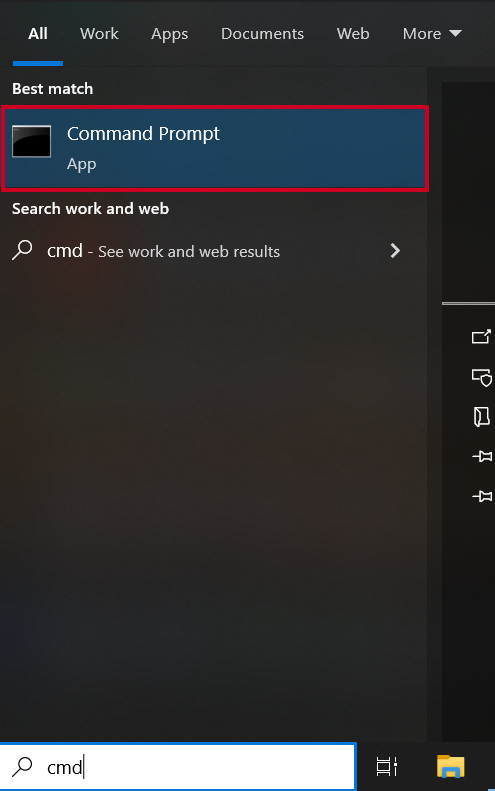
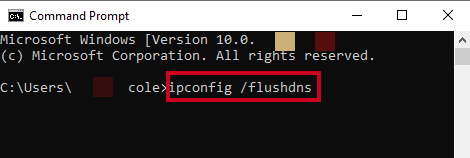
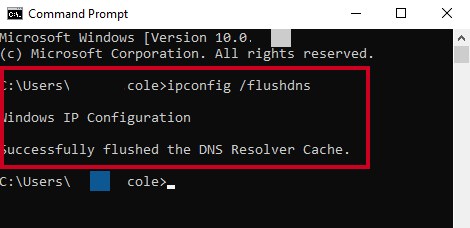
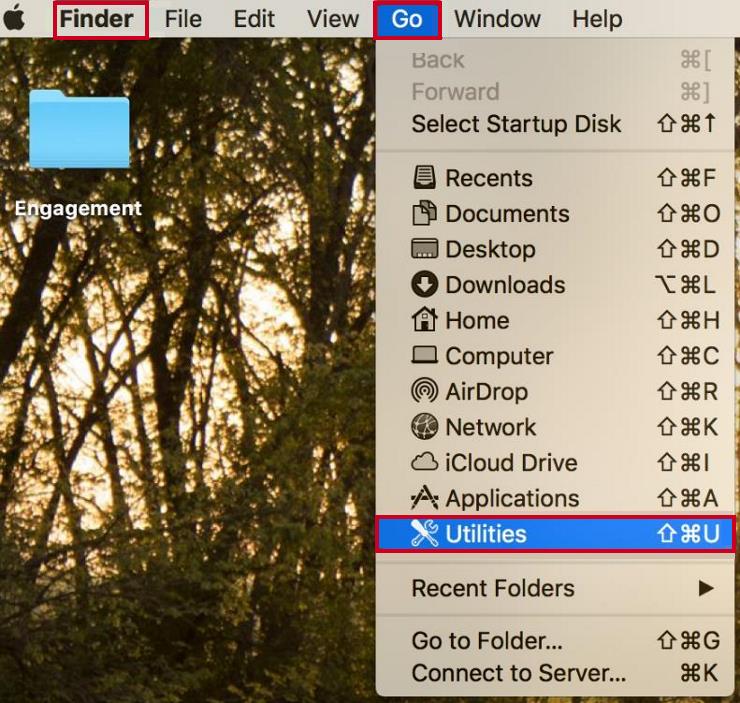
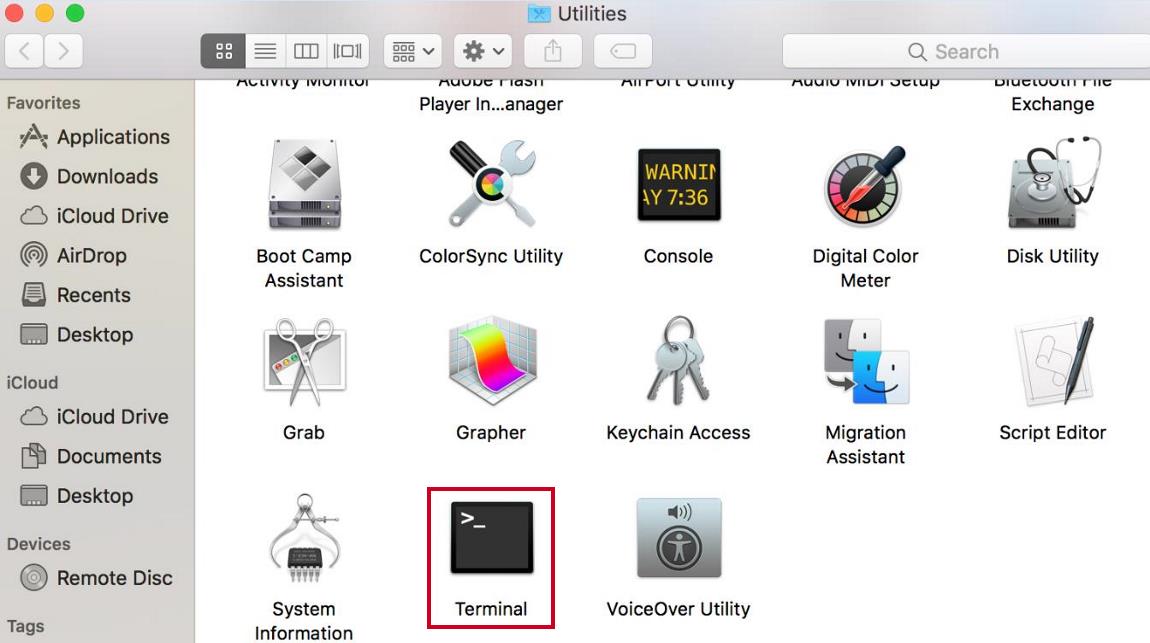
--- title: "Clear Local DNS Cache on Windows & Mac" slug: "clear-local-dns-cache-on-windows-mac" description: "Learn how to flush the DNS cache on Windows and Mac to resolve connectivity issues and improve network performance." updated: 2026-03-03T19:05:20Z published: 2026-03-03T19:05:20Z canonical: "www.civicplus.help/clear-local-dns-cache-on-windows-mac" stale: true --- > ## Documentation Index > Fetch the complete documentation index at: https://www.civicplus.help/llms.txt > Use this file to discover all available pages before exploring further. # Clear Local DNS Cache on Windows & Mac This article will show you how to flush the DNS for a computer running a Windows or Mac operating system. ## Clear Local DNS Cache on Windows 1. Type **"cmd"** into the **Taskbar Search Box**:![The Windows search bar is highlighted and filled with a search for 'cmd'.](https://cdn.us.document360.io/17dc564a-8310-4f61-b929-1bd73b36e158/Images/Documentation/Windows%20Search%20Bar%20CMD%20-%20MWC.png?sv=2026-02-06&spr=https&st=2026-11-22T13%3A58%3A53Z&se=2026-11-22T14%3A58%3A53Z&sr=b&sp=r&sig=MUfLOz2%2BqfuFhuE5QpEOSLYeQaobWXJa9RUSHrTC0Ts%3D) 2. Click the **Command Prompt app** in the results list when the search completes:![Windows search bar results for the Command Prompt app.](https://cdn.us.document360.io/17dc564a-8310-4f61-b929-1bd73b36e158/Images/Documentation/Command%20Prompt%20App%20Search%20Result%20-%20MWC.png?sv=2026-02-06&spr=https&st=2026-11-22T13%3A58%3A53Z&se=2026-11-22T14%3A58%3A53Z&sr=b&sp=r&sig=aKjtlFw2F6S0N8r8vv4k8wlWMJnZiOc6UocbIqul7Uc%3D) 3. Within the prompt, type **"ipconfig /flushdns"**:![The Command Prompt app window with instructions highlighted that read 'ipconfig /flushdns'.](https://cdn.us.document360.io/17dc564a-8310-4f61-b929-1bd73b36e158/Images/Documentation/Command%20Prompt%20Ipconfig-FlushDNS%20-%20MWC.png?sv=2026-02-06&spr=https&st=2026-11-22T13%3A58%3A53Z&se=2026-11-22T14%3A58%3A53Z&sr=b&sp=r&sig=oMJX7Zr67cBwoHL5uNXEN1UXiKtIIKSl9A6I6Z1jU3I%3D) 4. Hit the Enter key on your keyboard 5. A **Successfully flushed DNS Resolver Cache** message should appear:![The Command Prompt app window with a highlighted message reading 'Successfully flushed the DNS Resolver Cache.'](https://cdn.us.document360.io/17dc564a-8310-4f61-b929-1bd73b36e158/Images/Documentation/Command%20Prompt%20Successfully%20Flushed%20DNS%20-%20MWC.png?sv=2026-02-06&spr=https&st=2026-11-22T13%3A58%3A53Z&se=2026-11-22T14%3A58%3A53Z&sr=b&sp=r&sig=wQKIUk43csS68oP6znxY63p%2FLjIuduGmoi4gsVtH6Jw%3D) --- ## Clear Local DNS Cache on Mac 1. Navigate to **Finder**, hover over the **Go tab**, then select the **Utilities option** in the drop-down list:![The Finder screen on a Mac computer with the Go tab expanded and the Utilities option highlighted.](https://cdn.us.document360.io/17dc564a-8310-4f61-b929-1bd73b36e158/Images/Documentation/Mac%20Finder%20Go%20Tab%20Utilities%20-%20MWC.jpg?sv=2026-02-06&spr=https&st=2026-11-22T13%3A58%3A53Z&se=2026-11-22T14%3A58%3A53Z&sr=b&sp=r&sig=S%2FV7kBlzzLQxCZkCAt1B84Yn928h%2FeFdRwukLyin8yU%3D) 2. Select the **Terminal option**:![The Mac Utilities screen with the Terminal option highlighted.](https://cdn.us.document360.io/17dc564a-8310-4f61-b929-1bd73b36e158/Images/Documentation/Mac%20Utilities%20Terminal%20-%20MWC.jpg?sv=2026-02-06&spr=https&st=2026-11-22T13%3A58%3A53Z&se=2026-11-22T14%3A58%3A53Z&sr=b&sp=r&sig=I%2Fs5zFrTvLsMMuCANF1yxax8Uma8oXo0cZiZIGE3mM8%3D) 3. A **Terminal window** will open on your local machine 4. Within the prompt, type **"sudo killall -HUP mDNSResponder && echo macOS DNS Cache Reset"** 5. Hit the Enter key on your keyboard > [!WARNING] > **Notes:** > > - There will be no message, but at this time please reattempt connection to your domain. > - You may have to enter your administrator password. Domain Name Service.