---
title: "Create a HAR Format File"
slug: "create-a-har-format-file"
description: "Learn how to create a HAR file in Google Chrome to analyze page loading performance and identify potential issues."
updated: 2026-03-04T16:10:59Z
published: 2026-03-04T16:10:59Z
canonical: "www.civicplus.help/create-a-har-format-file"
stale: true
---
> ## Documentation Index
> Fetch the complete documentation index at: https://www.civicplus.help/llms.txt
> Use this file to discover all available pages before exploring further.
# Create a HAR Format File
A **HAR** file contains information a web browser generates about how the browser loads a page’s element. It can be useful to help determine if specific elements may be slowing the loading process.
> [!NOTE]
> Important Note:
>
> - The instructions in this article are created based on the Google Chrome browser. Instructions may vary if you use a browser other than Chrome.
> - Browser-specific instructions and HAR file analysis are available in the [Google Admin Toolbox HAR Analyzer](https://toolbox.googleapps.com/apps/har_analyzer/).
> [!TIP]
> **Who can use this feature?**
>
> System Administrators | Owners | Publishers | Authors
## Instructions
1. Navigate to the website's **home page** (or other desired page)
2. Press F12 on your keyboard to open the **browser tools**
- To open the browser tools with your mouse instead of your keyboard, right-click any empty area of your browser window and left-click the "Inspect" option in the context menu that appears.
3. Select **Network** from the list of tabs: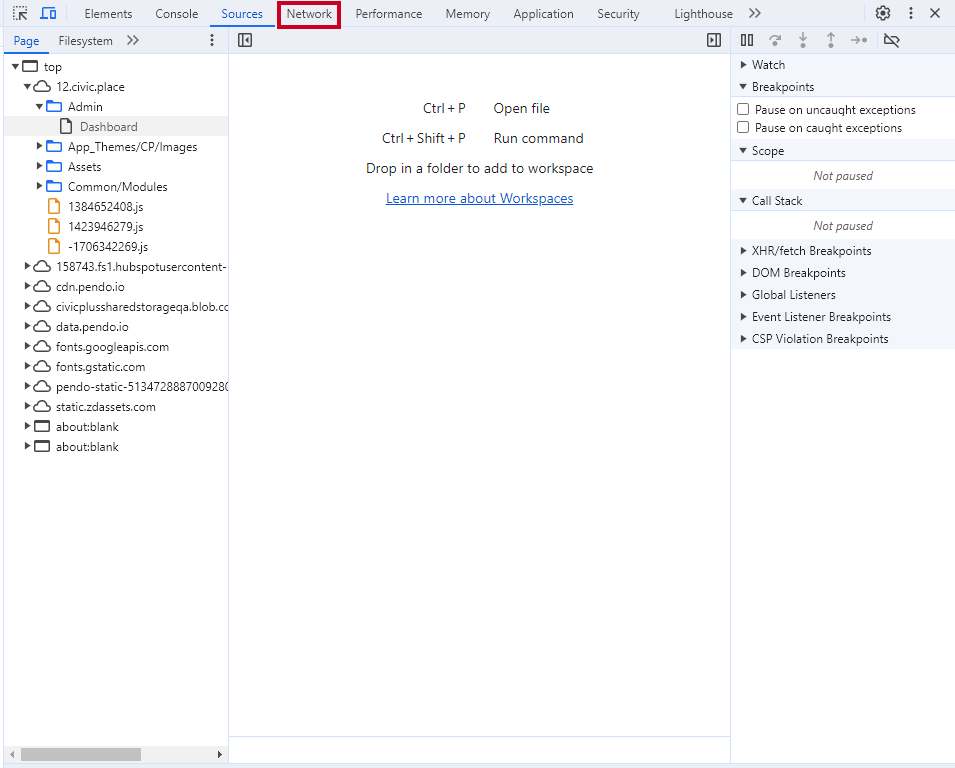
4. Press F5 on your keyboard to refresh the page
5. Wait for the page to fully load (some scripts may continue to load once the page has finished)
6. Ensure that you check the **Preserve log checkbox**: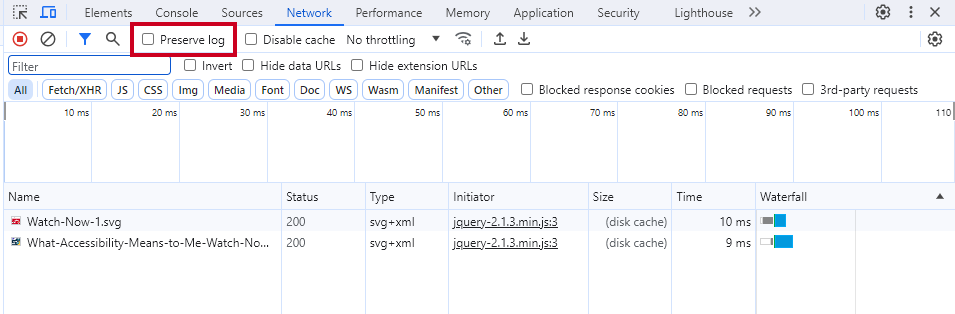
7. Select the **Export** button: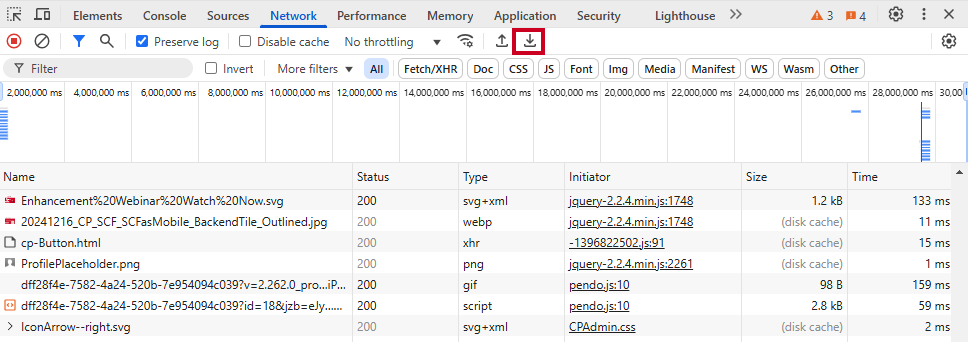
8. Save the **HAR file** to your computer: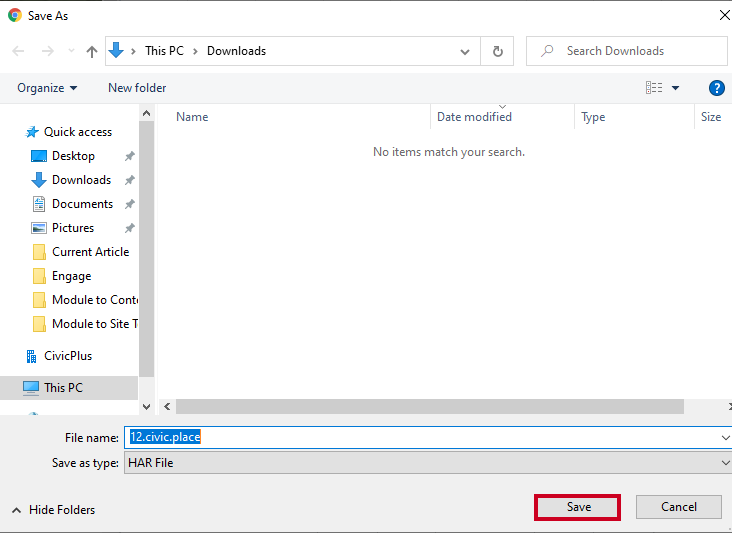
---
## Resources
- [Google Admin Toolbox HAR Analyzer](https://toolbox.googleapps.com/apps/har_analyzer/)