---
title: "Disable Custom HTML Rendering"
slug: "disable-custom-html-rendering"
description: "Learn how to disable Custom Rendering to troubleshoot unresponsive pages in your website editor."
updated: 2025-08-14T13:44:03Z
published: 2025-08-14T13:44:03Z
canonical: "www.civicplus.help/disable-custom-html-rendering"
---
> ## Documentation Index
> Fetch the complete documentation index at: https://www.civicplus.help/llms.txt
> Use this file to discover all available pages before exploring further.
# Disable Custom HTML Rendering
This article will show you how to **Disable Custom HTML Rendering**. You can use this feature to access pages that are not working properly, possibly due to issues with code in Custom HTML widgets or Editor widgets.
> [!NOTE]
> Important Note:
>
> When working with unresponsive pages, the **Live Edit** menu may not be accessible on that specific page. Instead, you need to visit a working page to access the **Live Edit** menu and enable the **Disable Custom HTML** **Rendering** feature from that page. You can then navigate to the unresponsive page to see if editing functions are now available.
> [!TIP]
> **Who can use this feature?**
>
> System Administrators | Owners | Publishers | Authors
## Instructions
[Embedded content](https://www.iorad.com/player/1901058/CivicEngage--How-to-Disable-Custom-HTML-Rendering-Tutorial)
1. Navigate to your desired page
2. Ensure that the **Live Edit state** is toggled to **ON**: 
3. Click the **Arrow** on the **Live Edit** menu to view the dropdown options: 
4. Click the **Disable Custom HTML** **Rendering** option: 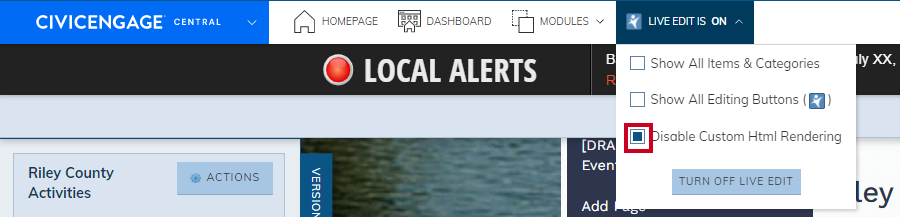
5. The page should then refresh and display properly, with your editing options
Hypertext Markup Language. The language used to define the content of the site in a structurally meaningful manner.