---
title: "Information to Include in Your Support Tickets"
slug: "information-to-include-in-your-support-tickets"
description: "Learn how to effectively submit support tickets, including necessary information and how to capture screenshots for your requests."
updated: 2026-03-02T16:14:28Z
published: 2026-03-02T16:14:28Z
canonical: "www.civicplus.help/information-to-include-in-your-support-tickets"
---
> ## Documentation Index
> Fetch the complete documentation index at: https://www.civicplus.help/llms.txt
> Use this file to discover all available pages before exploring further.
# Information to Include in Your Support Tickets
You can [contact Support](/municipal-websites-central/docs/contact-support) to submit support tickets. This article will explain the information you should include in your support tickets and will also explain how to capture screenshots that can be included with your request.
## Online Ticket Submission Information
Please provide the following information (as applicable) to expedite your requests or questions:
- Which site are you working on? Where on the site are you working? Please provide the appropriate page or module URL.
- **Examples:**
- https://www.cp-example.civicplus.com/100/Page-Title
- https://www.cp-example.civicplus.com/admin/AgendaCenter
- With what device and browser are you accessing the site?
- **Examples:** Desktop using Internet Explorer in Windows 7, CivicPlus Mobile App on iPhone
- **Resource:** [What is My Browser?](https://www.whatismybrowser.com/)
- What steps consistently reproduce the issue? Thorough details allow us to more quickly diagnose issues.
- What users are experiencing the issue?
- **Example:** All users, front-end users who aren't signed in, just yourself
> [!WARNING]
> **Note:** Depending on the issue, we may be able to contact the users who are experiencing the issue. Please include the email addresses of the user(s) that are experiencing the issue, as relevant.
- Please attach any screenshots, videos, or other related information to your ticket.
---
## How to Take Screenshots
### Windows 10
1. Press the **Start button** on your computer's taskbar 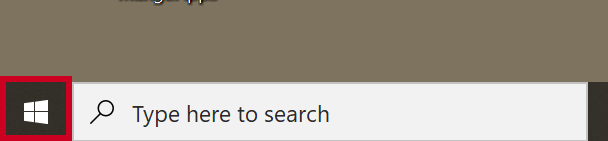
2. Type **Snipping Tool** into the search bar and select the **Snipping Tool App**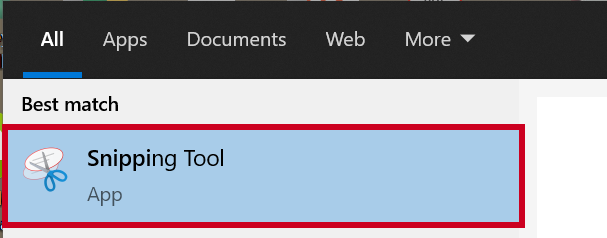
3. In the Snipping Tool app, click the **Mode drop-down menu** and select the **Window Snip option** 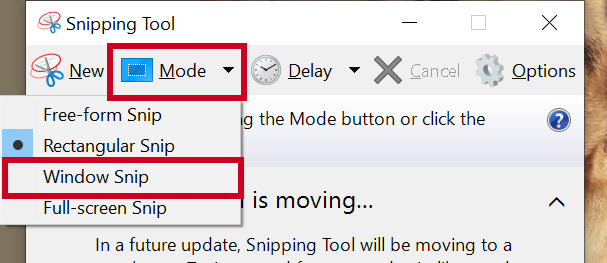
> [!WARNING]
> **Note:** The screen will adjust to being slightly darker; this is normal behavior.
4. Click on the **screen** with the issue you are looking at (if using multiple monitors)
5. A **preview box** will pop up with the screenshot you took
6. Click the **Save Snip button** (floppy disk icon) on the toolbar 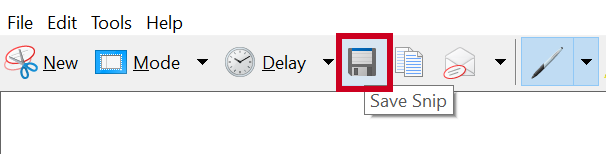
7. [Upload the file to the chat](/municipal-websites-central/docs/use-live-chat) with the Agent
### Windows 11
1. Click into the **Search field** on the taskbar and type **Snipping Tool**: 
2. Select the **Snipping Tool app** from the search results: 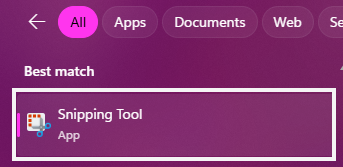
3. When the app has opened, press the Windows + Shift + S keys to start a new snip: 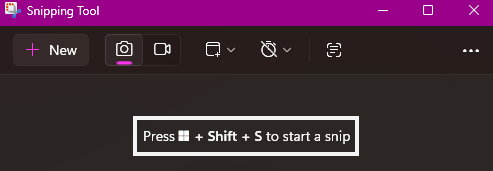
4. In the Snipping Tool app, click the Snipping Area drop-down menu: 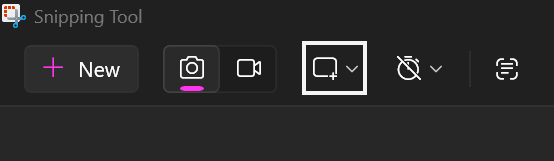
5. Select the Window option: 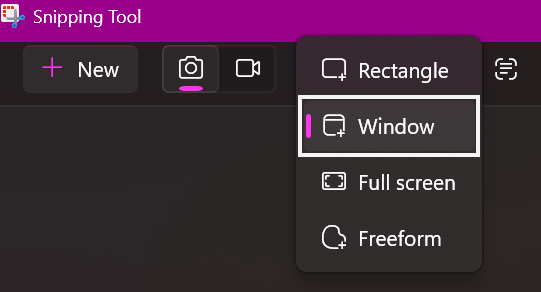
> [!WARNING]
> Note:
>
> Your screens will adjust to being slightly darker, leaving only the screen your cursor is on at normal brightness; this is normal behavior.
6. Click on the screen with the issue you are looking at (if using multiple monitors)
7. A preview box will pop up with the screenshot you took. Click the “Markup and Share” button in the preview message: 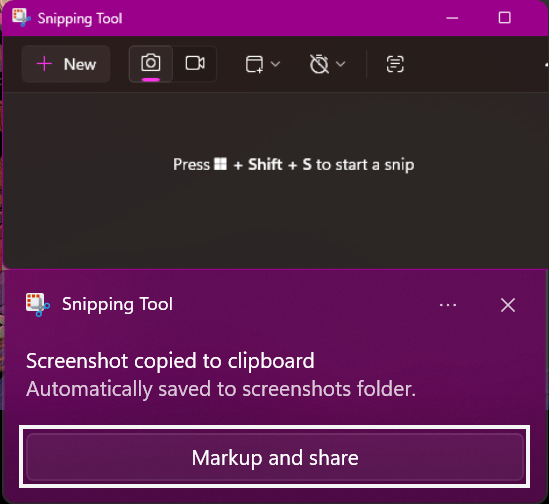
8. Click the Save Snip button (floppy disk icon) on the toolbar: 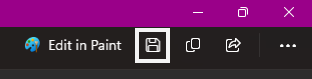
9. [Upload the file to the chat](/municipal-websites-central/docs/use-live-chat) with the Agent
### MacOS X
1. Press and hold the Shift, Command, and 3 keys on your keyboard at the same time
2. If you see a **thumbnail** in the corner of your screen, click it to edit the screenshot or wait for the screenshot to save to your desktop
> [!WARNING]
> **Note:** By default, screenshots are saved to your desktop with the name ”Screen Shot [date] at [time].png.”
3. [Upload the file to the chat](/municipal-websites-central/docs/use-live-chat) with the Agent
---
## Resources
- [How to Use Live Chat](/municipal-websites-central/docs/use-live-chat)
Uniform Resource Locator
Application. A program that performs a particular task or set of tasks.