---
title: "Preview a Website on All Devices Using Chrome Inspect"
slug: "preview-a-website-on-all-devices-using-chrome-inspect"
description: "Preview how your website renders on different devices, open Chrome’s Inspect tool, toggle the device toolbar, and select desired screen sizes."
updated: 2025-12-10T19:41:01Z
published: 2025-12-10T19:41:01Z
canonical: "www.civicplus.help/preview-a-website-on-all-devices-using-chrome-inspect"
---
> ## Documentation Index
> Fetch the complete documentation index at: https://www.civicplus.help/llms.txt
> Use this file to discover all available pages before exploring further.
# Preview a Website on All Devices Using Chrome Inspect
During a website redesign, or at any time, it is important to know how your website renders for various screen sizes and devices. Chrome has an extension within its Inspect toolbar that allows you to preview these from your desktop.
## Instructions
1. Navigate to your website
> [!WARNING]
> **Note:**
>
> It is preferred that you **do not** log in.
2. Right-click anywhere on the page and click the **Inspect option** in the context menu that appears: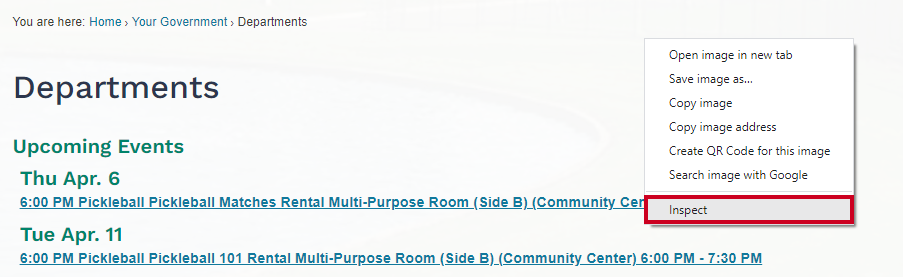
3. Press Ctrl + Shift + M on your keyboard, or click the **Toggle device toolbar button** (device icon) in the top-left corner of the Inspect panel: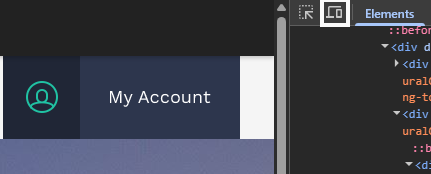
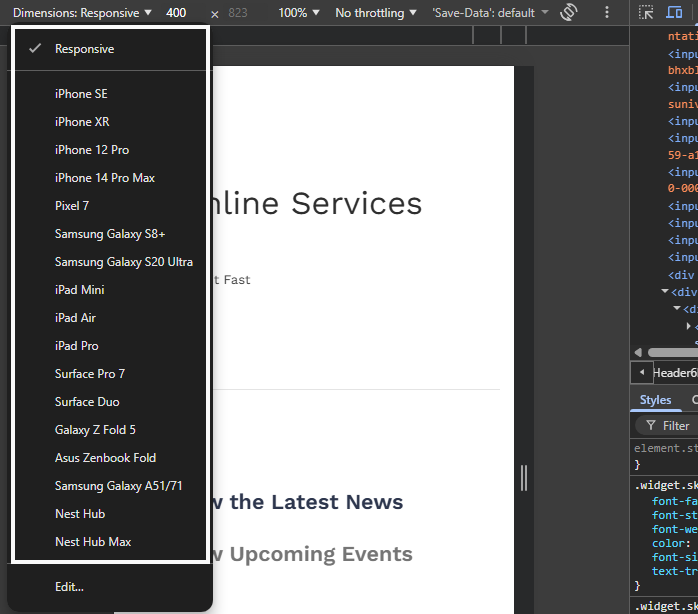
4. Your website will likely have shifted display to a default option; to change this, click on the **Dimensions dropdown** above the website display and select any option you wish to preview: