---
title: "Use Traceroute on Windows or Mac"
slug: "use-traceroute-on-windows-or-mac"
description: "Learn how to use Traceroute on Windows and Mac to analyze network paths and diagnose connectivity issues."
updated: 2026-03-04T18:09:36Z
published: 2026-03-04T18:09:36Z
canonical: "www.civicplus.help/use-traceroute-on-windows-or-mac"
stale: true
---
> ## Documentation Index
> Fetch the complete documentation index at: https://www.civicplus.help/llms.txt
> Use this file to discover all available pages before exploring further.
# Use Traceroute on Windows or Mac
**Traceroute** is a software tool used to display the path and some basic information about the network path between two addresses. This article will show you how to use Traceroute on Windows and Mac computers.
## Use Traceroute on Windows
> [!NOTE]
> Important Notes
>
> - In order to run this software, you will need access to the **Command Prompt program**.
> - Availability will depend on your Operating System.
> - Windows users will use the command "tracert."
> - You can also use the [pathping command](/municipal-websites-central/docs/use-pathping-on-windows), if available.
1. Type "cmd" into the **Taskbar Search Box** 
2. Click the **Command Prompt app** in the results list when the search completes 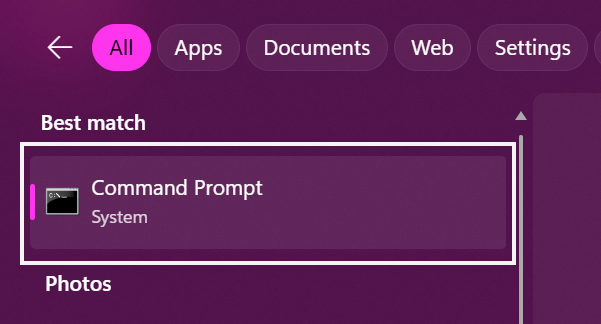
3. Type "tracert", add a space, and add your production domain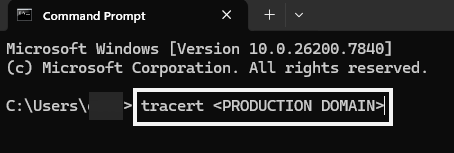
> [!WARNING]
> **Note:** For instructions on how to find your site's production domain, [view our Determine Your Site’s Production Domain article](/municipal-websites-central/docs/determine-your-sites-production-domain).
4. Hit the Enter key on your keyboard and wait for the completion
5. Copy the **results** and paste them into a **text file**
6. Submit the **text file** for analysis
---
## Use Traceroute on Mac
> [!NOTE]
> Important Notes
>
> - In order to run this software, you will need access to the **Terminal app**.
> - Availability will depend on your Operating System.
> - Mac users will use the command "traceroute."
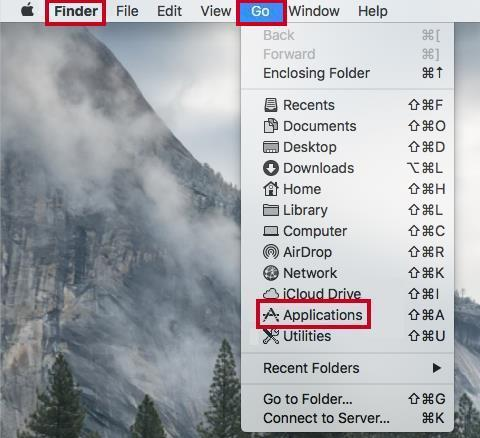
1. Navigate to **Finder**, hover over the **Go tab**, then select the **Applications option** in the drop-down list:
2. Scroll down and open the **Utilities folder**: 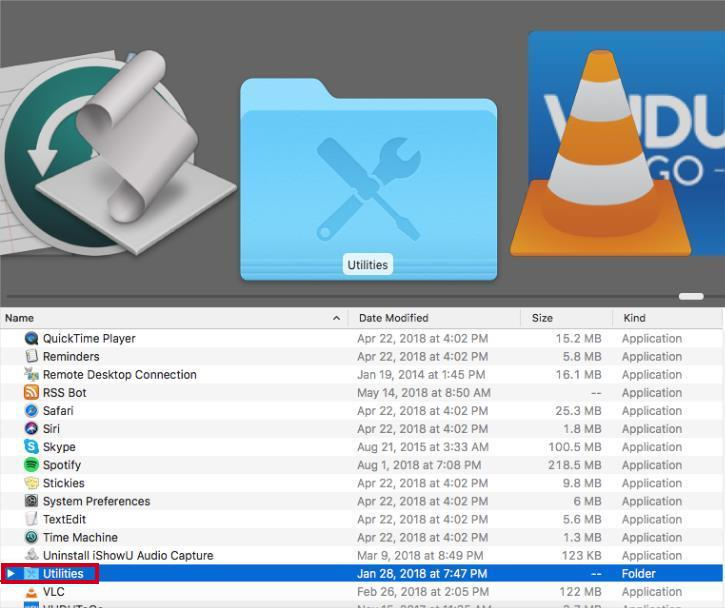
3. Scroll down and open the **Terminal app**: 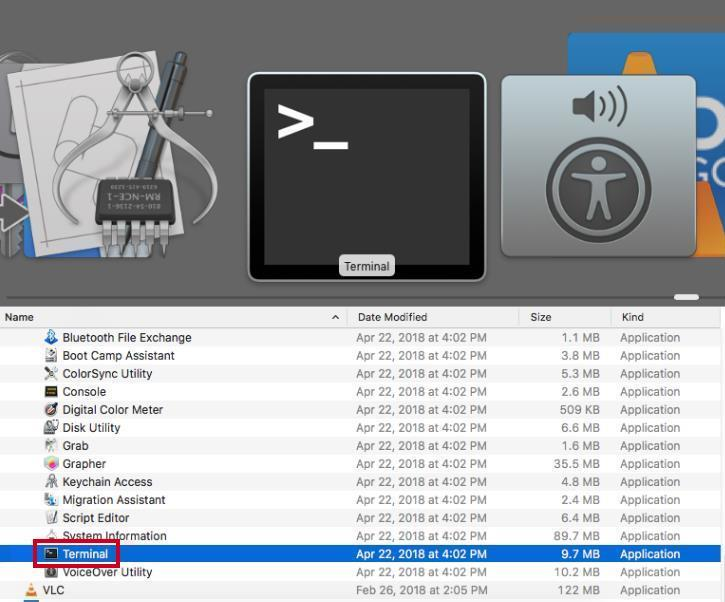
4. Type "traceroute "
> [!WARNING]
> **Note:** For instructions on how to find your site's production domain, [view our Determine Your Site’s Production Domain article](/municipal-websites-central/docs/determine-your-sites-production-domain).
5. Hit the Enter key on your keyboard and wait for the completion
6. Copy the **results** and paste them into a **text file**
7. Submit the **text file** for analysis
---
## Resources
- [Use Pathping on Windows](/municipal-websites-central/docs/use-pathping-on-windows)
- [Determine Your Site’s Production Domain](/municipal-websites-central/docs/determine-your-sites-production-domain)