---
title: "Add & Modify the Custom HTML Widget on Your Page"
slug: "add-modify-the-custom-html-widget-on-your-page"
description: "Discover how to use the Custom HTML widget on your CivicPlus site to embed scripts, videos, iFrames, and more. Follow step-by-step instructions to add or modify custom code. Note: CivicPlus Support does not troubleshoot custom HTML or JavaScript."
updated: 2025-08-12T19:58:10Z
published: 2025-08-12T19:58:10Z
canonical: "www.civicplus.help/add-modify-the-custom-html-widget-on-your-page"
stale: true
---
> ## Documentation Index
> Fetch the complete documentation index at: https://www.civicplus.help/llms.txt
> Use this file to discover all available pages before exploring further.
# Add & Modify the Custom HTML Widget on Your Page
The Custom HTML widget has a wide range of uses. The most popular are:
- Custom Script
- iFrames
- Video Tour books
- Vimeo Video Embeds
- YouTube Video Embeds
- Other Video Embeds
> [!NOTE]
> Important Note:
>
> - Not all code will work with the CivicPlus system. If there is a conflict with the website's base code, things may appear broken. Due to this, we recommend that you add custom HTML widgets to copied pages. If you need assistance, [**contact Support**](/municipal-websites-evolve/docs/contact-support).
> - Please be aware that CivicPlus does not support the use of HTML or JavaScript. Support will not troubleshoot to determine why custom HTML or JavaScript code does not work.
> [!TIP]
> **Who can use this feature?**
>
> System Administrators | Owners | Publishers | Authors
## Add the Custom HTML Widget to a Page
[Embedded content](https://www.iorad.com/player/1896890/CivicEngage-Evolve--How-to-Add-a-Custom-HTML-Widget-to-Your-Page-Practice-Tutorial)
1. [Sign in to your site](/municipal-websites-evolve/docs/sign-in-to-your-site)
2. Navigate to your desired page
3. Click **Widgets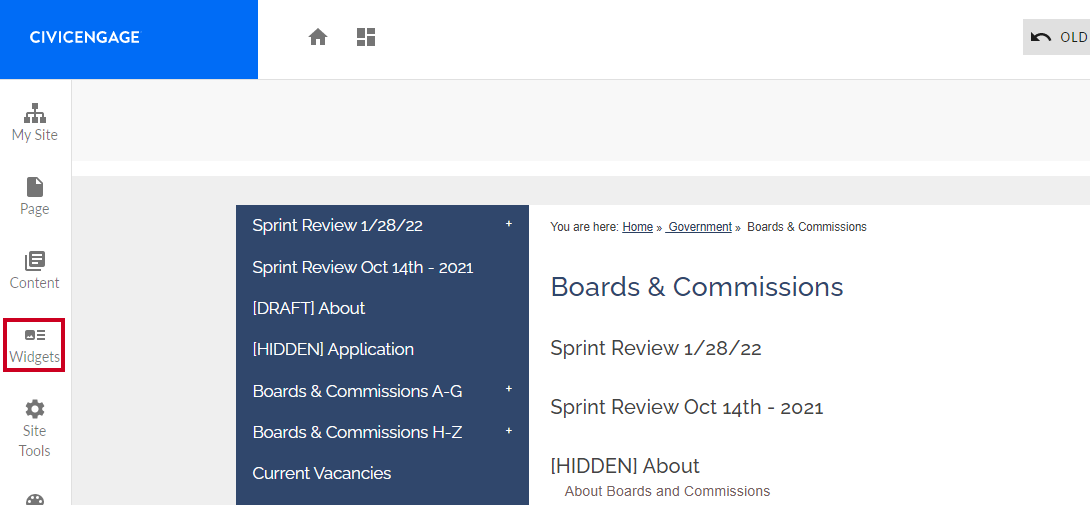**
4. Drag and drop the **Custom HTML** widget onto your page 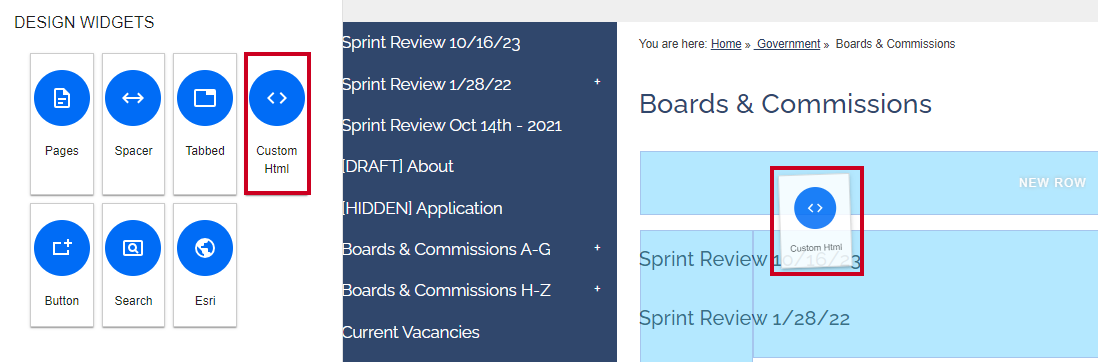
5. Paste your custom code into the widget 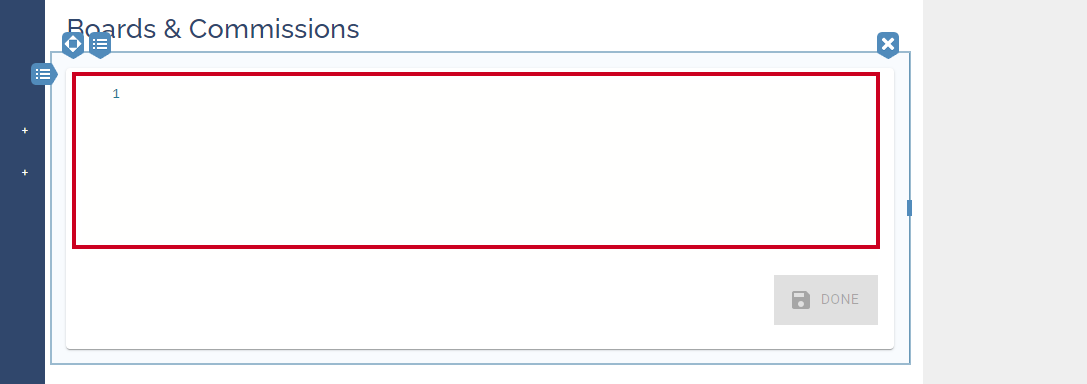
6. Click **Done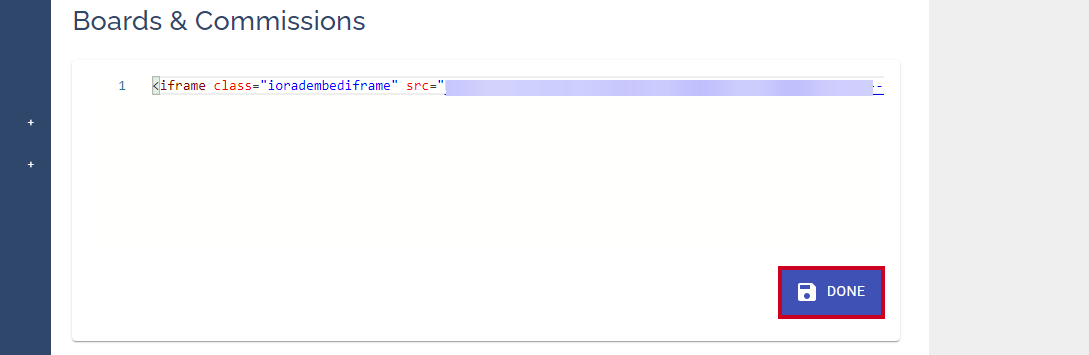**
7. Click **Save Changes** 
## Modify a Custom HTML Widget
1. [Sign in to your site](/municipal-websites-evolve/docs/sign-in-to-your-site)
2. [Disable Custom HTML](/municipal-websites-evolve/docs/enable-or-disable-custom-html) before you navigate to the page where the Custom HTML is located 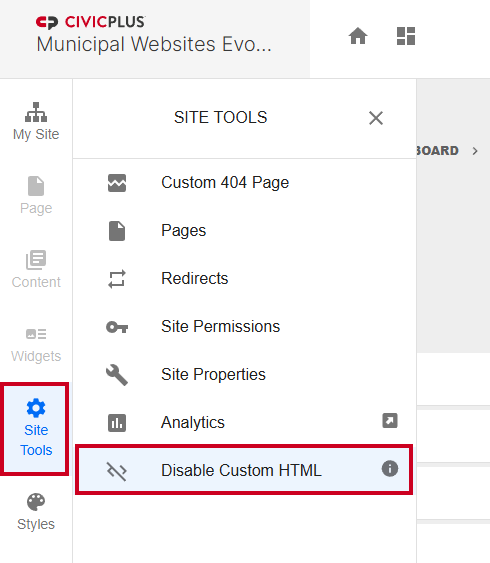
> [!WARNING]
> Note:
>
> This will disable the widget and expose the code field.
3. Make the necessary adjustments to the widget code and click **Done** 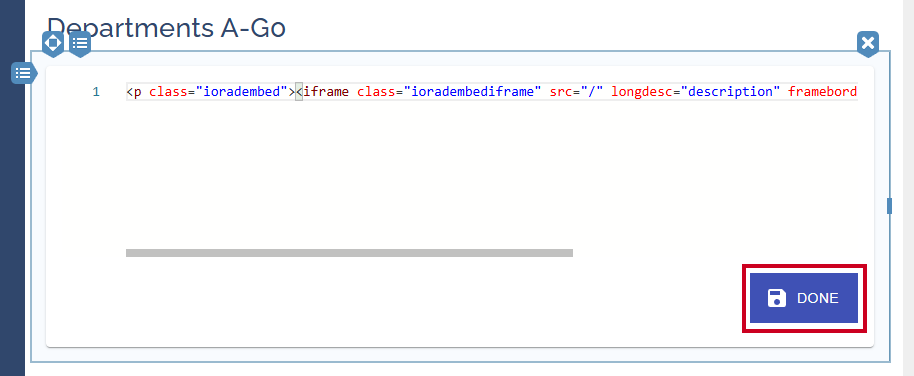
4. Click **Save Changes** on the page 
5. Open **Site Tools** and [Enable Custom HTML](/municipal-websites-evolve/docs/enable-or-disable-custom-html) 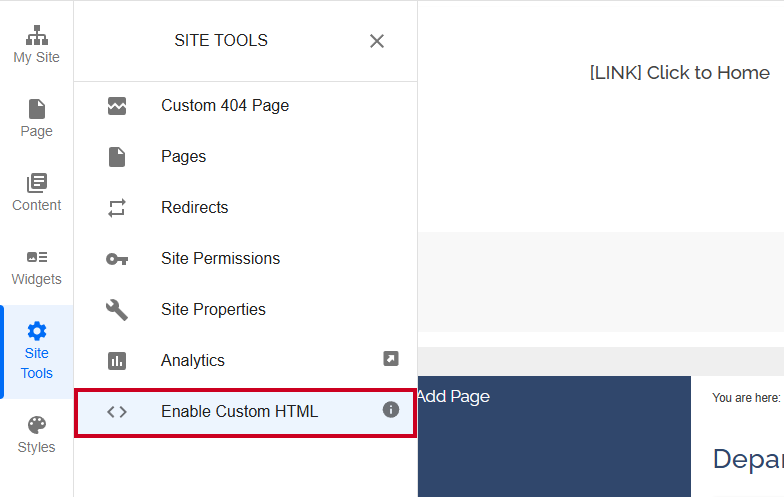
## Resources
- [Enable or Disable Custom HTML](/municipal-websites-evolve/docs/enable-or-disable-custom-html)
- [Enable Lazy Loading for Custom HTML Widgets](/municipal-websites-evolve/docs/enable-lazy-loading-for-custom-html-widgets)
Hypertext Markup Language. The language used to define the content of the site in a structurally meaningful manner.