---
title: "Link a Form to Your Website"
slug: "link-a-form-to-your-website"
description: "Find out more about how to link a form with Web Evolve content. "
updated: 2025-11-13T20:12:20Z
published: 2025-11-13T20:12:20Z
canonical: "www.civicplus.help/link-a-form-to-your-website"
---
> ## Documentation Index
> Fetch the complete documentation index at: https://www.civicplus.help/llms.txt
> Use this file to discover all available pages before exploring further.
# Link a Form to Your Website
This will show you how to link a form with Municipal Websites Evolve content. The easiest way to provide access to a form is to link it to a piece of content. In order to link a form to a piece of content, you will first need to get the form’s link from the Forms Console.
[Embedded content](https://www.iorad.com/player/1909982/CivicOptimize--How-to-Link-Your-Form-to-Content-Practice-Tutorial)
## Instructions
1. [Copy the link to the form](/process-automation/docs/copy-a-link-to-a-form)
2. Navigate to the **page** you wish to link the form to
3. Within the content editor and inside the rich text editor field the content lives in, highlight text to link the form to 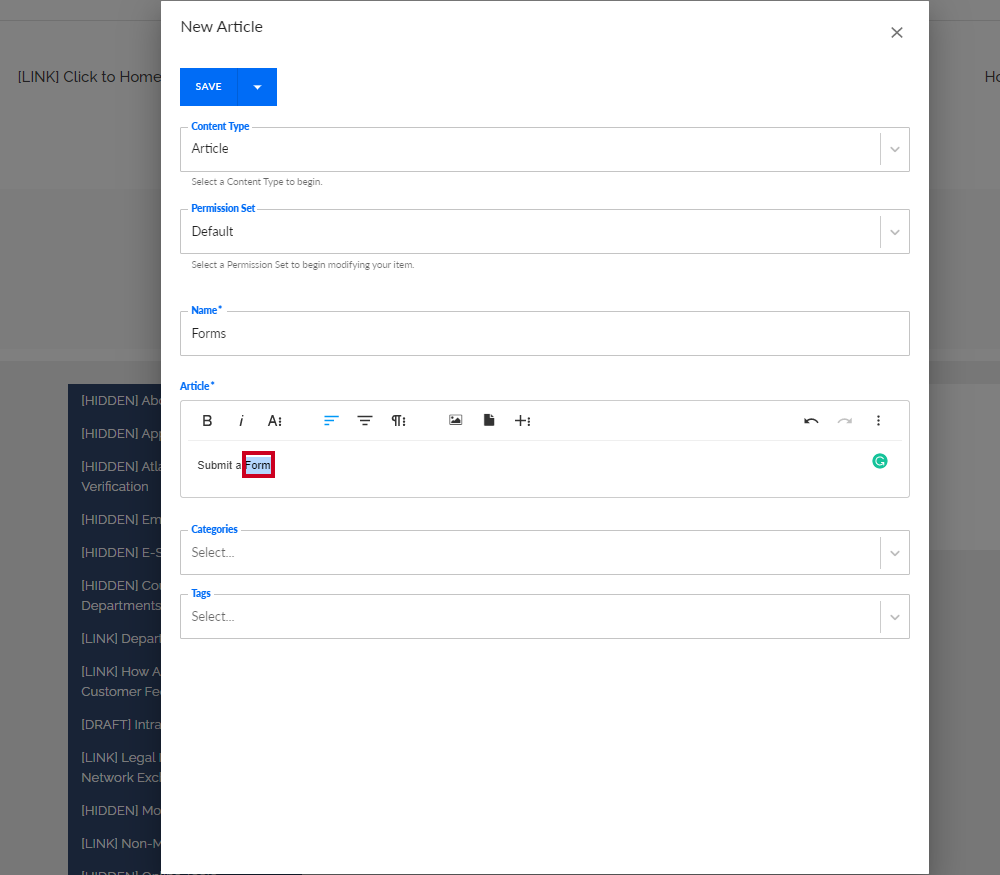
4. Select **More Rich**, then click **Insert Link** (or use **CTRL + K** shortcut) 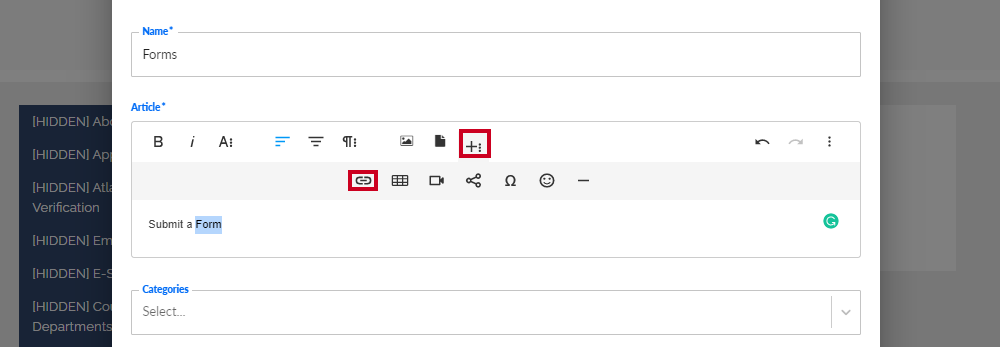
5. Paste in the link copied from the Productivity console 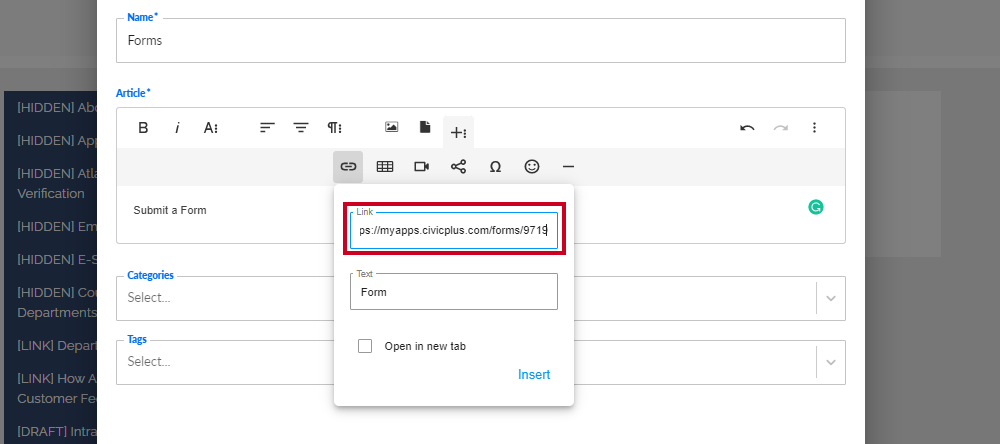
> [!WARNING]
> **Note**:
>
> Select **Open in new tab** to enable the form link to open in a new browser tab.
6. Click **Insert** 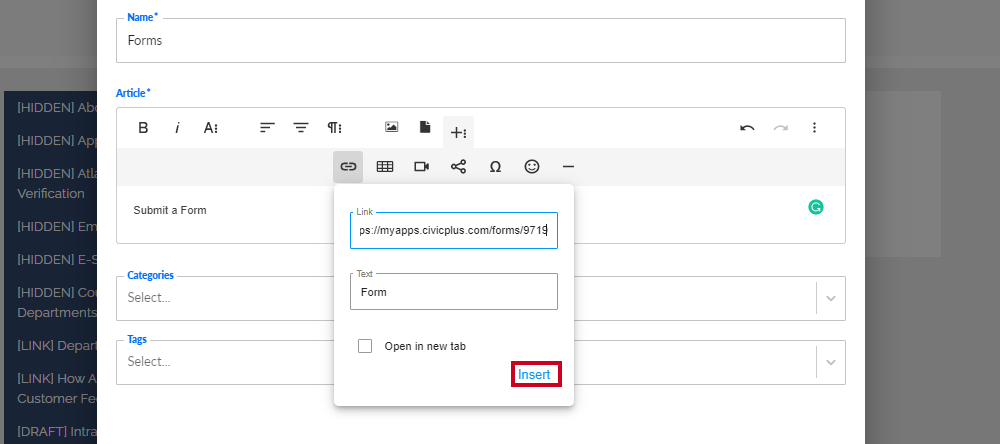
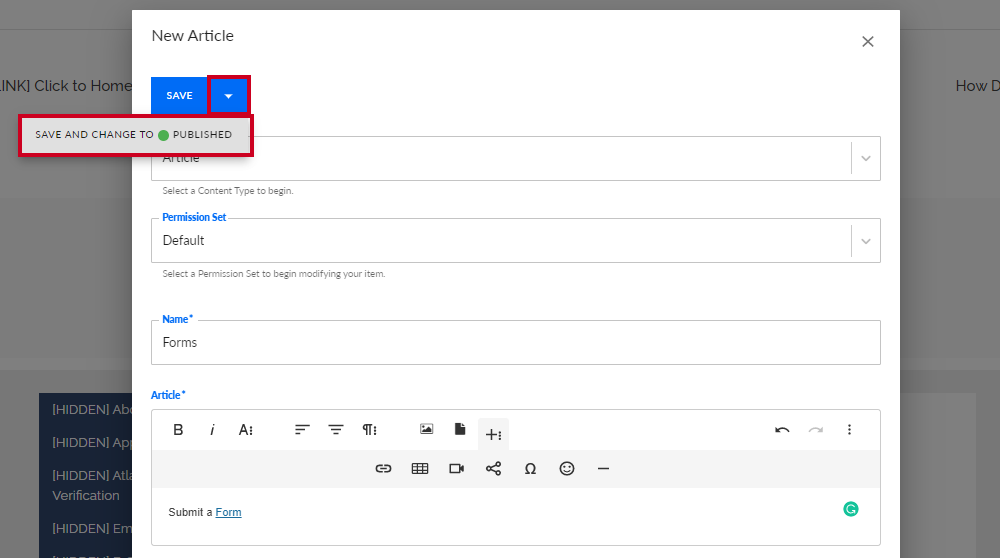
7. Select **Save and Publish** from the **save options dropdown** to save the form link and make it live